Jenkins Server Setup
After Jenkins is installed and running, complete the first-time setup from the browser.
1) Open Jenkins URL
Visit:
https://jenkins.digi.saroj.name.np
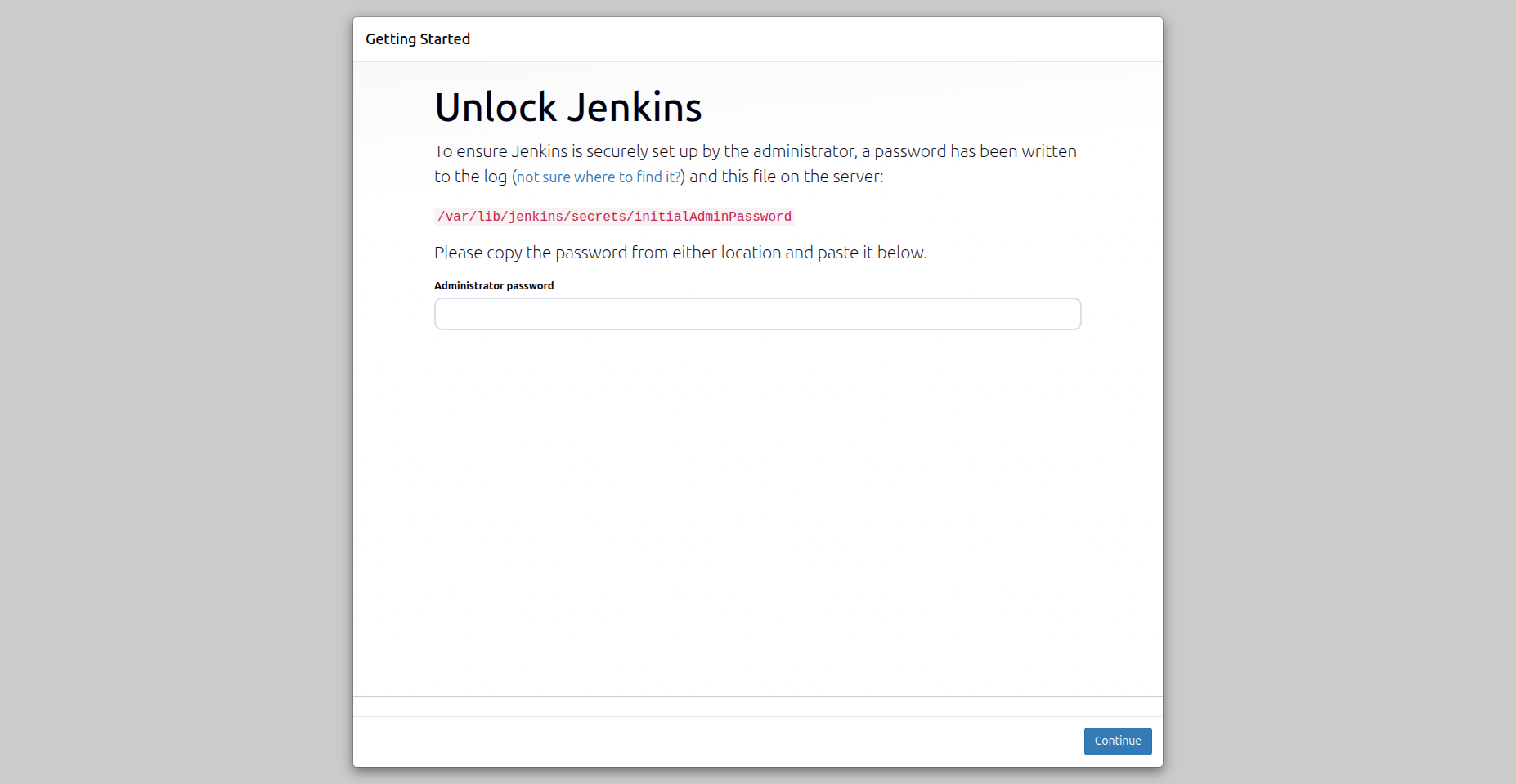
2) Unlock Jenkins with the initial admin password
On the server, get the initial unlock password:
sudo cat /var/lib/jenkins/secrets/initialAdminPassword
Copy the password, paste it into the unlock screen, and click Continue.
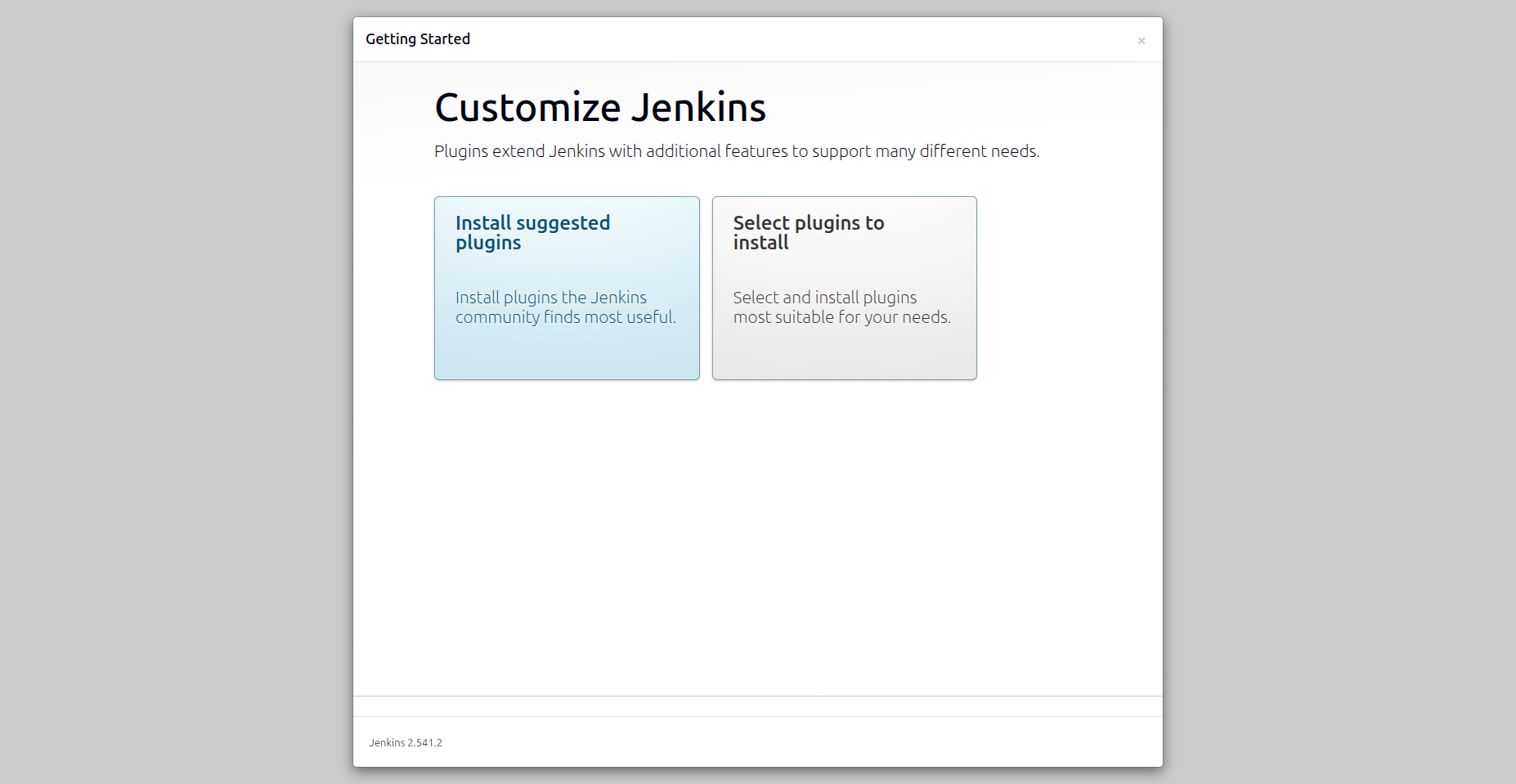
3) Install suggested plugins
On the Customize Jenkins page, click Install suggested plugins.
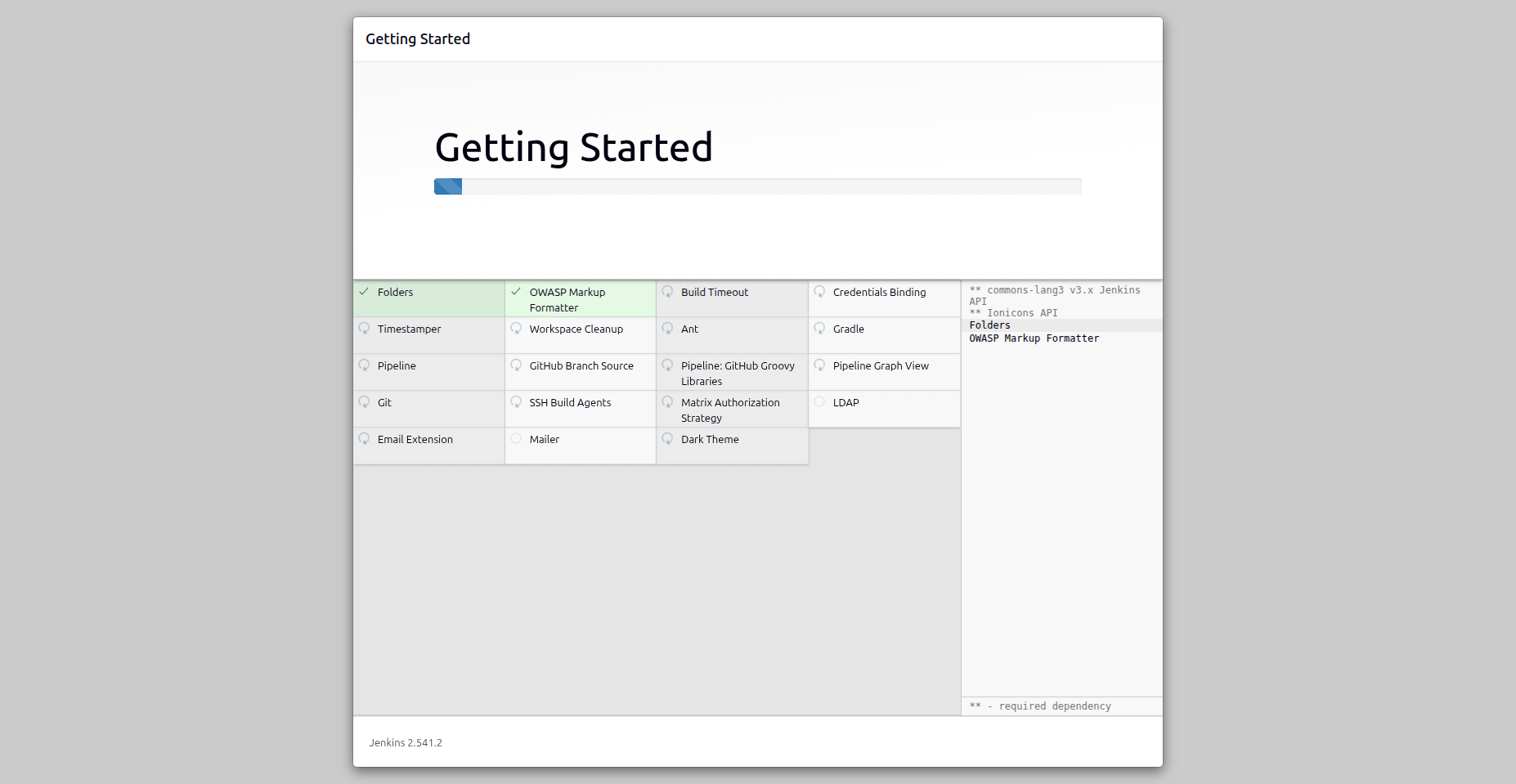
4) Wait for package/plugin installation
Jenkins will download and install required packages and plugins. Wait for this to complete.
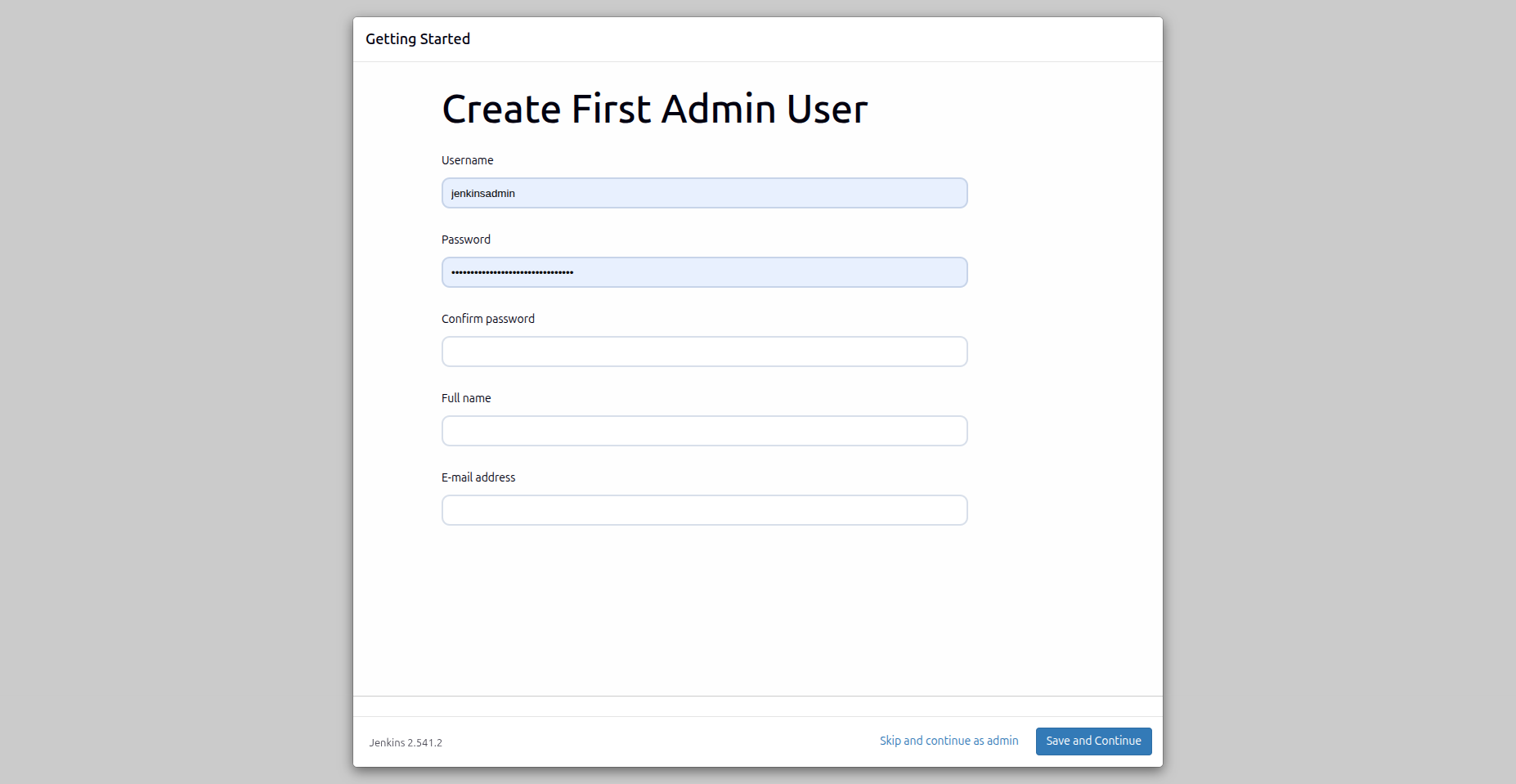
5) Create the first admin user
Fill in the admin user details (username, password, full name, and email), then continue.
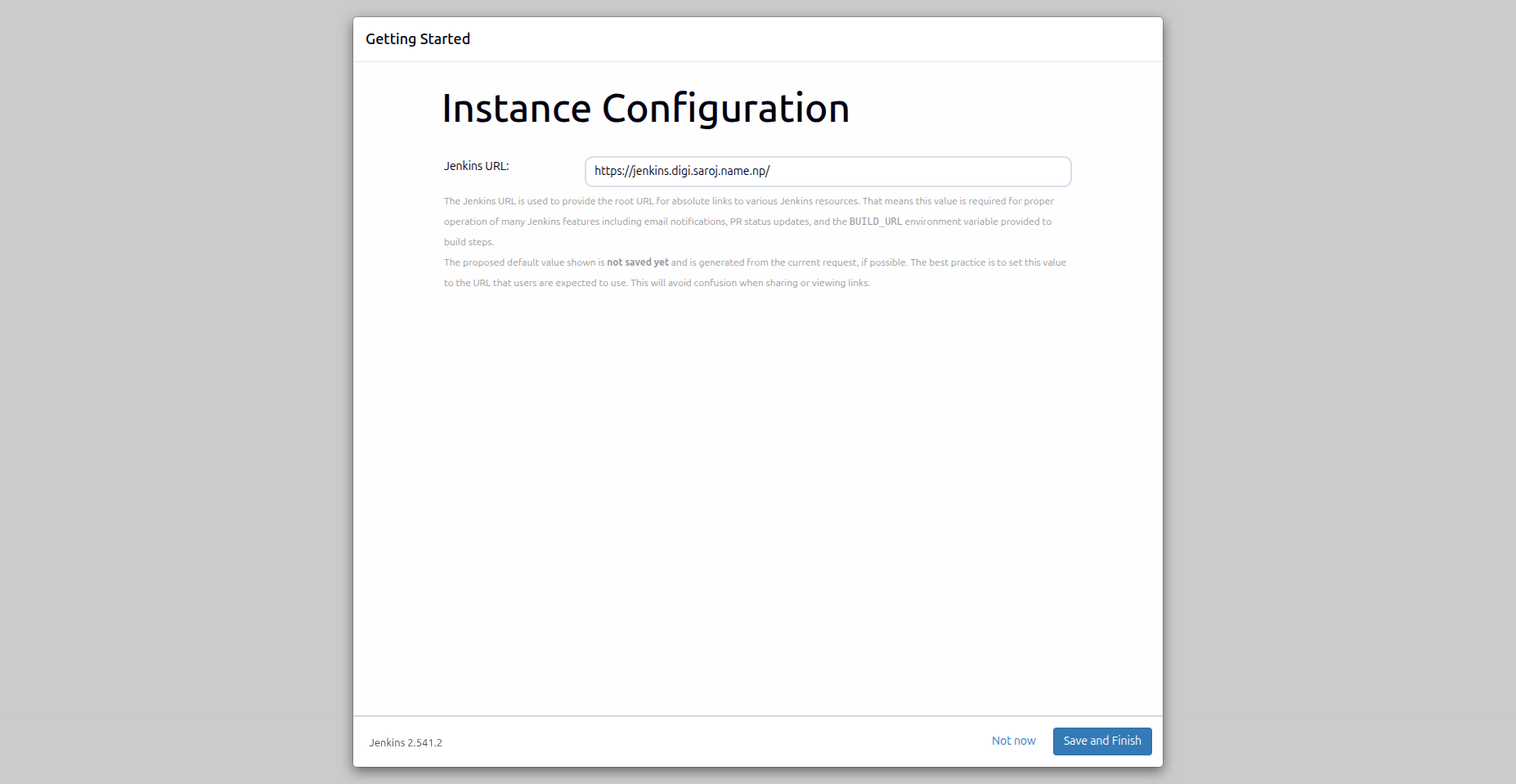
6) Configure Jenkins instance URL
On Instance Configuration, confirm the URL:
https://jenkins.digi.saroj.name.np/
Then click Save and Finish.
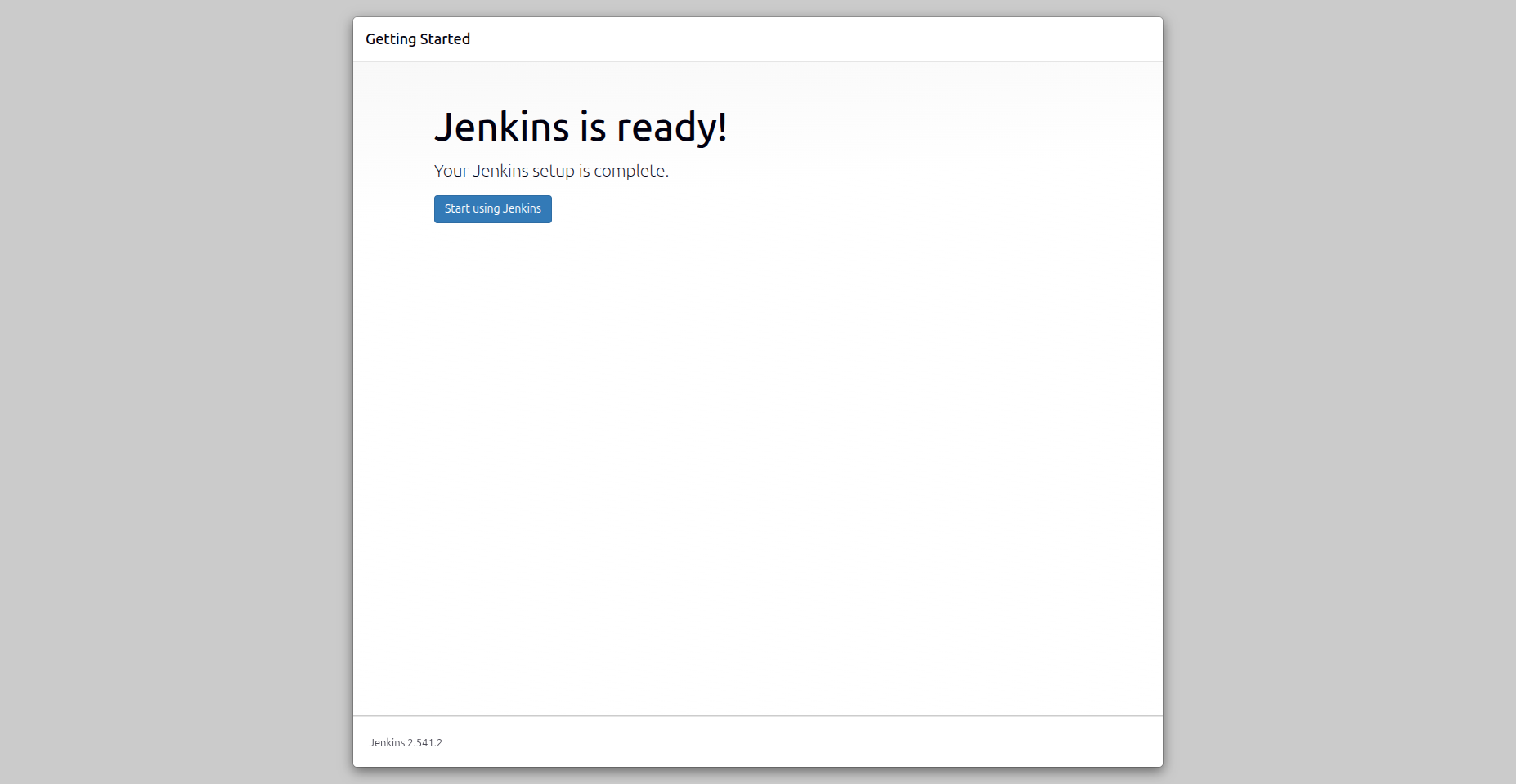
7) Jenkins is ready
On the ready screen, click Start using Jenkins.
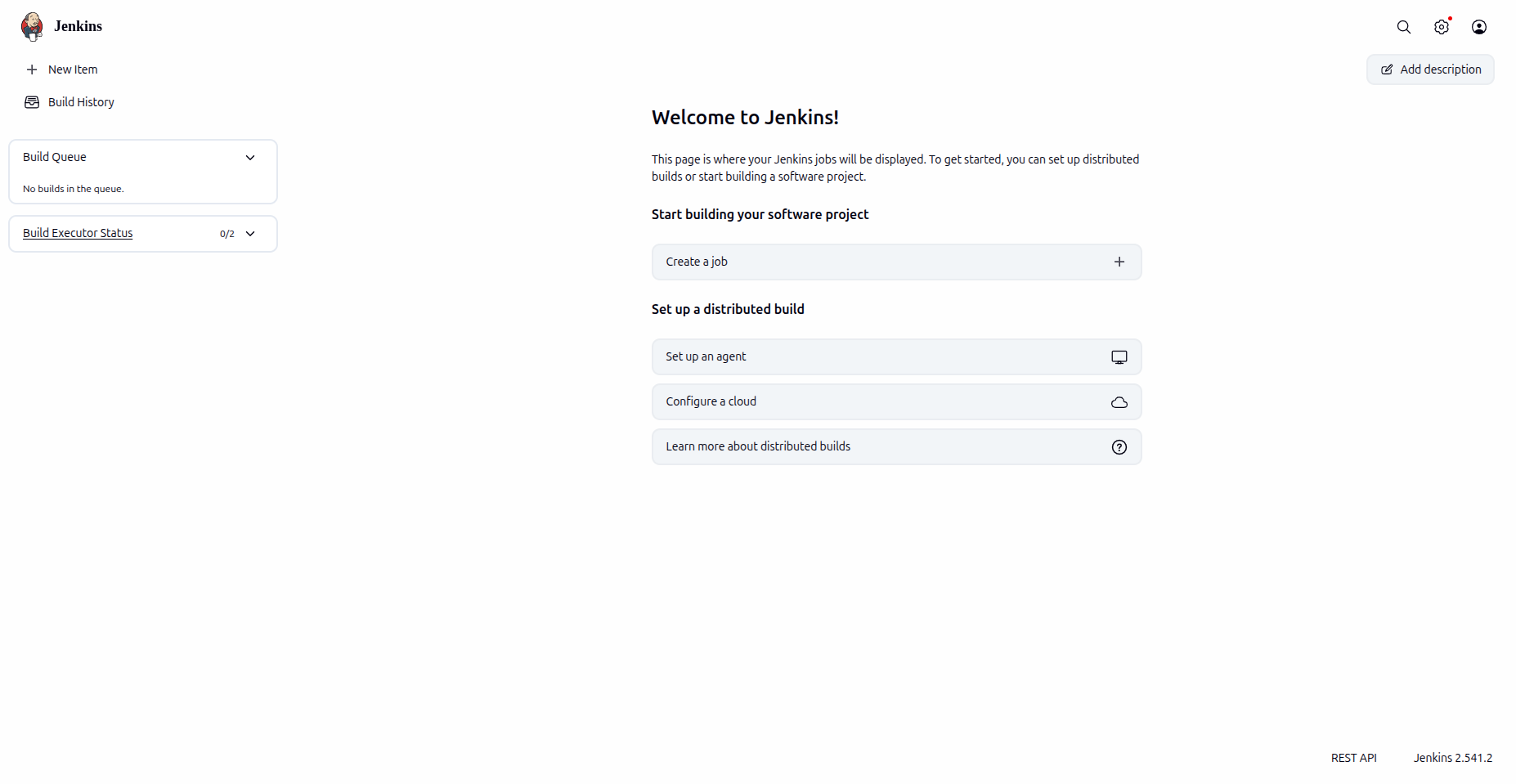
8) Verify Jenkins homepage
You should now see the Jenkins dashboard/homepage.
Recommended next steps
- Install pending Jenkins and plugin updates from Manage Jenkins -> Plugins.
- Add required credentials in Manage Jenkins -> Credentials.
- Configure tools/agents needed by your pipelines.
- Set up regular backups for
/var/lib/jenkinsand keep an off-server copy. - For reverse proxy and HTTPS hardening, follow Apache setup.
- For credential handling best practices, follow Secrets guide.